 Hazelnote
Studying
How to create flashcards and quizzes.
A learning set mixes flashcards, quiz questions and more from your own material.
Contents
Create a learning setThe task typesPractice or against the clockHow you practiceWhere to find your learning setsCommon questions- Flashcards and quizzes are made in Learn as a learning set, through Create new.
- You choose the material, the task types and 10, 20 or 30 tasks.
- Learning sets come with Essential and Pro, and the AI writes them from your material.
In Hazelnote, a deck you practice with is called a learning set. It can hold flashcards only, or a mix of flashcards, quiz questions, pairs and fill in the blanks. Here's how to make one and how to practice with it.
Create a learning set
- Create newOpen Learn, tap Create new, then Learning set.
- Pick your materialUnder What should it cover?, choose summaries and notebooks. You can also add a document, a photo or a link, or pick Mistakes with questions you got wrong.
- Mix and createUnder What should be mixed in?, choose the task types and how many tasks you want. Set the time limit and tap Create learning set.
A document, photo or link you add here stays in Learn only and doesn't show up under Summaries. While the AI builds your set, you can close the screen. The set then shows up with your learning sets. When it's ready, tap Practise now or Later.
The task types
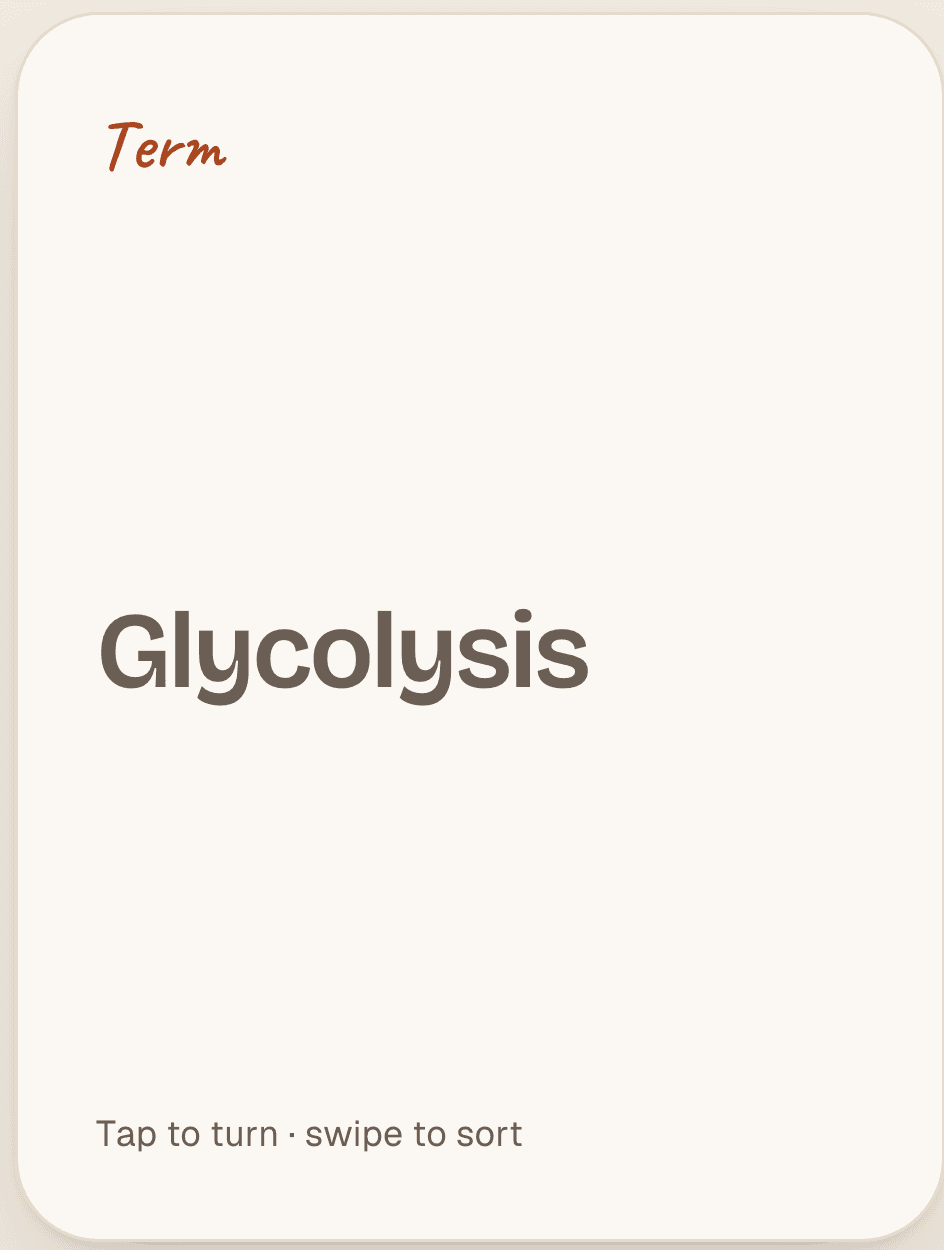
- Flashcards: the term on the front, the explanation on the back.
- Multiple choice: a quiz question with several answers.
- True or false?: a statement that's either right or wrong.
- Fill the gap: you fill in what's missing.
- Pairs: you match terms to their explanations.
- Explain: you explain in your own words and compare with the model answer.
You need at least one task type. If you only want flashcards, leave just that one selected. With several sources, Hazelnote spreads the tasks evenly. Tap Set the split yourself to decide how many come from each source.
Practice or against the clock
With No time limit you get hints and the answer after every question. With With a time limit you pick 10, 20, 30 or 45 minutes, and the answers only come at the end. That turns a learning set into a quick test before the exam.
How you practice
- Tap a flashcard to turn it over. Then say how well you knew it: Knew it, Almost or Didn’t know.
- For quiz questions and the other tasks, you see the answer right after you respond.
- Without a time limit, anything you missed comes back in the same round.
Where to find your learning sets
Under Recently studied on the Learn home screen you'll see the sets you practiced with last. All of them are under Free practice in the Learning sets tab. Tap the three dots on a set to start or delete it.
Quizzes and flashcards you made for a summary in an older version of the app show up there as that summary's learning set. Tap the three dots to choose Flashcards only, Quiz only or Match pairs. With those flashcards, you swipe right when you knew one and left when you want to keep practicing it.