 Hazelnote
Recordings and notes
How to record a lecture or a meeting.
You listen, Hazelnote records. Then the AI writes the summary.
Contents
Start a recordingWhile you recordStop and summarizeIf something goes wrongRecording in a notebookCommon questions- A live recording runs for up to 45 minutes and is summarized on its own when it ends.
- While you record, you can take up to 6 photos of the board or slides.
- The recording is saved on your device first, so it isn't lost even if sending fails.
For lectures, meetings and conversations there's the live recording. You start it, keep Hazelnote open and tap stop at the end. That's when your summary is written.
Start a recording
- New summaryGo to Summaries and tap New summary.
- Choose Live recordingTap Live recording. The first time, your device asks whether Hazelnote may use the microphone.
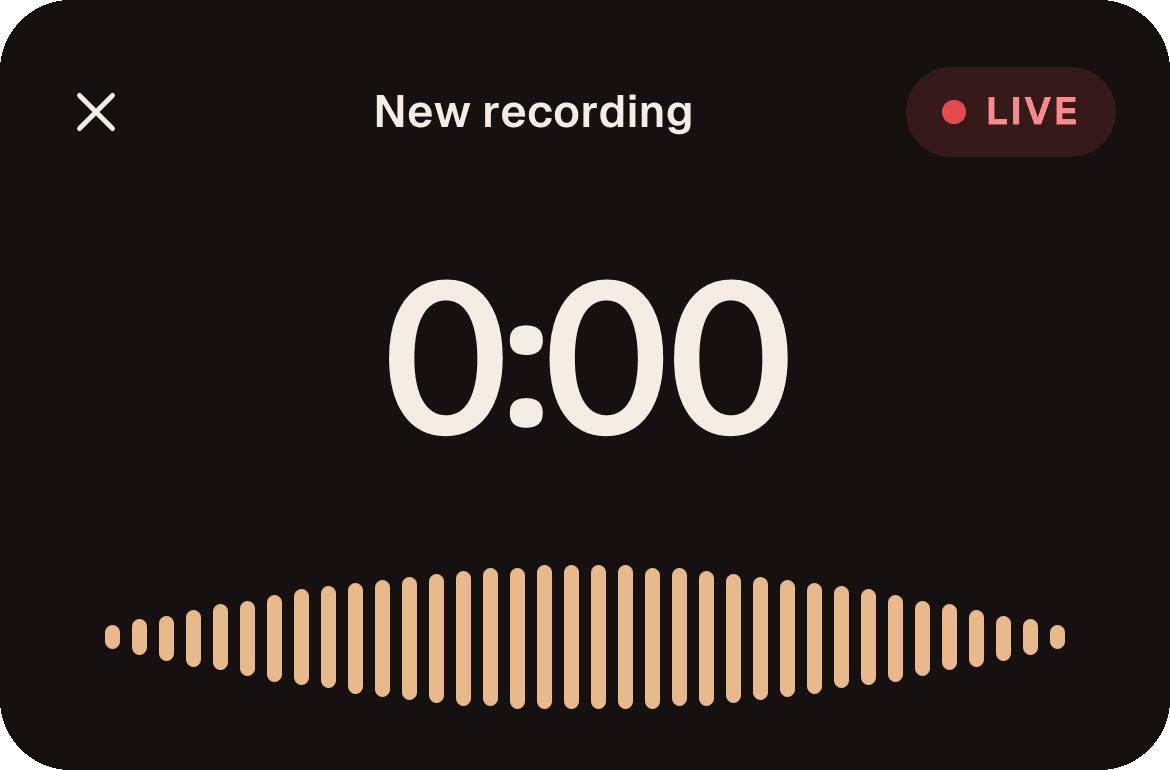
- RecordOnce you see LIVE, you're recording. Place your device where it can hear the speaker well.
If you turned down the microphone earlier, Hazelnote shows Microphone not allowed. Tap Open Settings and allow the microphone there. When you come back, the recording starts.
While you record
- Pause stops the recording for a moment, Resume picks it back up.
- Use the camera to take up to 6 photos of the board or slides. They go into the summary, each under the moment you took it.
- Your screen stays on while you record. Keep Hazelnote in the foreground, because nothing is recorded while you're in another app.
- In the last 5 minutes the app shows how much time is left. After 45 minutes the recording stops by itself and the summary is made.
A phone call, Siri or another app playing sound interrupts the recording. It usually picks up again on its own afterward. If it doesn't, tap Resume.
Stop and summarize
Tap stop. Hazelnote saves the recording and writes your summary from it. Long recordings take a few minutes, and you can keep working in the meantime. A recording needs at least 12 seconds, otherwise there's too little to summarize.
If you close the recording screen, Hazelnote asks whether you want to discard the recording. Tap Keep recording to carry on.
If something goes wrong
Hazelnote saves the recording on your device before sending it. If sending doesn't work, for example without internet, it stays in the list as Recording saved · not sent. Tap it, then tap Try again.
Recording in a notebook
On a tablet you can also record right inside a notebook while you take notes. Tap the microphone in the top bar, Record audio. Such a recording runs for up to 90 minutes and stays in the notebook. Tap Summarize later to turn it into a summary. More about notebooks on Notebook and AI pen.