 Hazelnote
Getting started
How to create your first summary.
Pick a source, wait a moment, start reading. The AI writes the note for you.
Contents
Start a summaryWhich sources you can useWhile it's being writtenRead, Listen, AskCommon questions- Notes the AI writes for you are called summaries in Hazelnote.
- You start with New summary and pick a source, such as a PDF or a recording.
- It's usually ready in under a minute, and you can keep working in the meantime.
Hazelnote has three areas: Summaries, Notebooks and Learn. Your first note is made under Summaries, where the AI writes it from your material. If you'd rather write by hand with a pen or your finger, use Notebooks.
Start a summary
- Open SummariesGo to Summaries and tap New summary.
- Pick a sourceFor example, choose Document for a PDF, Photos for pictures of the board, or Live recording for a lecture.
- Create itYour source shows up under What goes in?. Choose a length and tap Create summary.
For the length you can choose Short for the essentials at a glance, Medium for every key point with short explanations, or Detailed with examples and connections. A live recording opens the recording screen instead. More on that in Record a lecture or meeting.
Which sources you can use
- Live recording: a lecture, meeting or conversation
- Audio file: an existing recording, such as MP3, M4A or WAV
- Document: a PDF, a scan or a text file
- Photos: from the camera, or up to 10 pictures from your library
- Web link: an article or a web page
- Text: pasted in or typed yourself
- From a notebook: your own handwritten notes
What to keep in mind with files, photos and links is covered in Upload a PDF, link or photo.
While it's being written
Under Your summary is being written you can see what the AI is doing. It usually takes less than a minute, a few minutes for long recordings. Tap Continue in the background to go back and keep working. When it's done, tap View summary.
The AI writes in the language of your material. An English handout gives you an English summary, a German one a German summary.
Read, Listen, Ask
Every summary has three tabs:
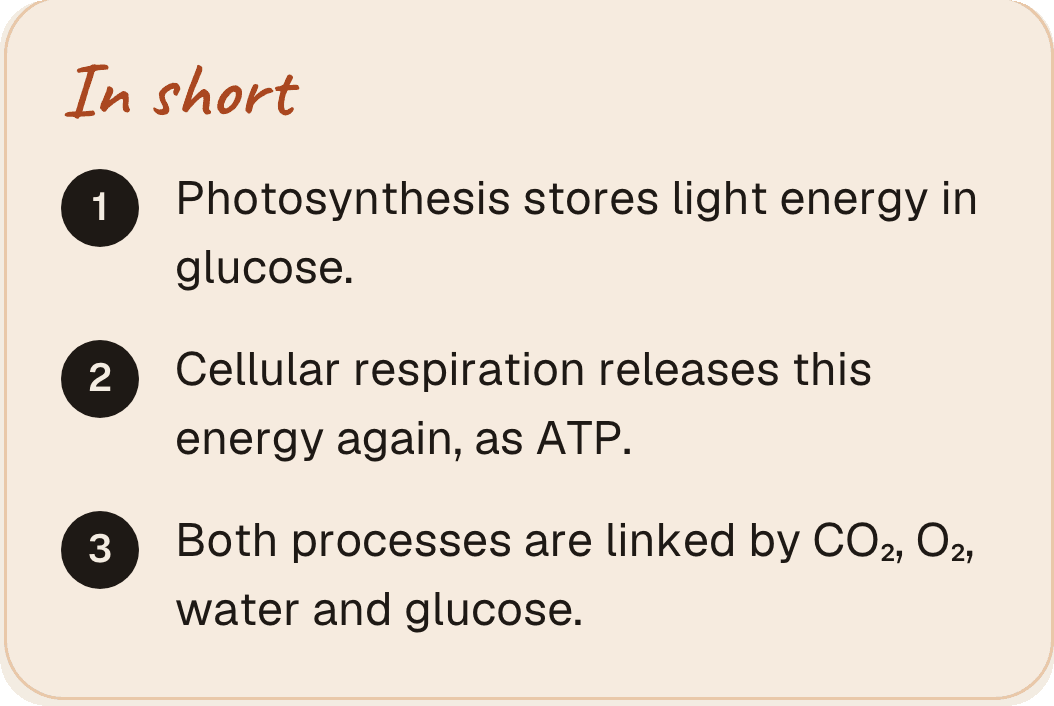
- Read: “In short” at the top, then the sections with key terms and examples.
- Listen: the summary as a conversation, short version or quiz to listen to. This is part of Pro.
- Ask: ask questions about this summary. Answers come only from it. With Pro you can also talk to the tutor here.